

Storage Dialog Plus v 1.0


Storage Dialog Plus v 1.0
About the mod:
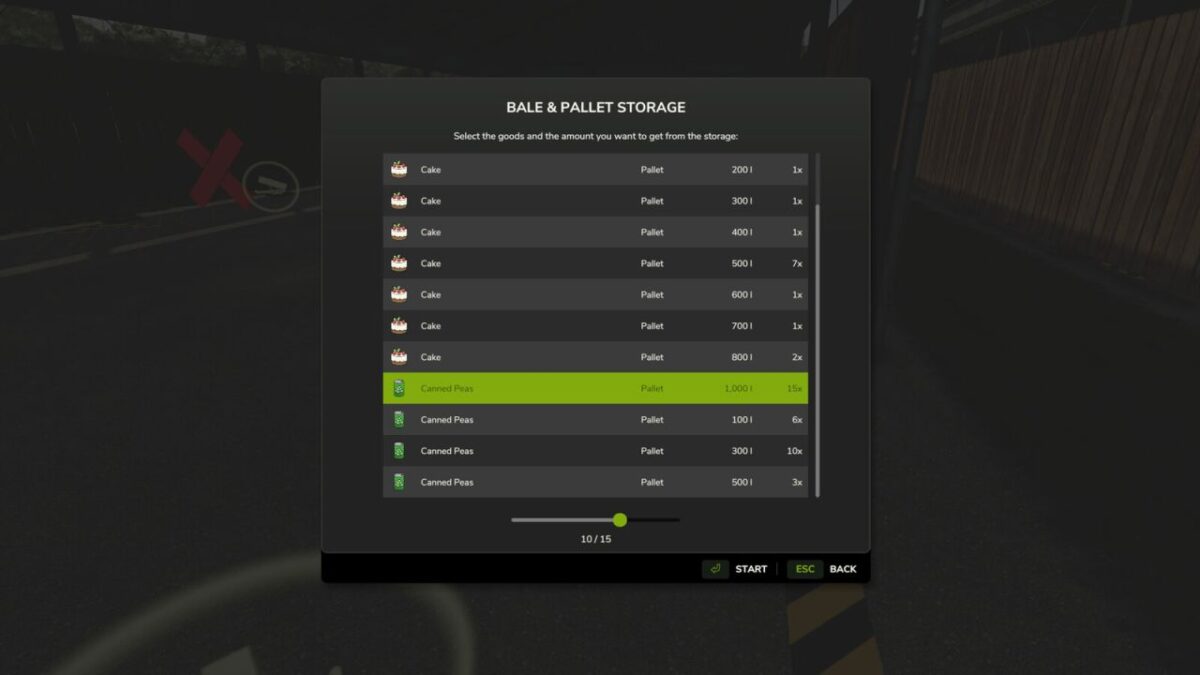
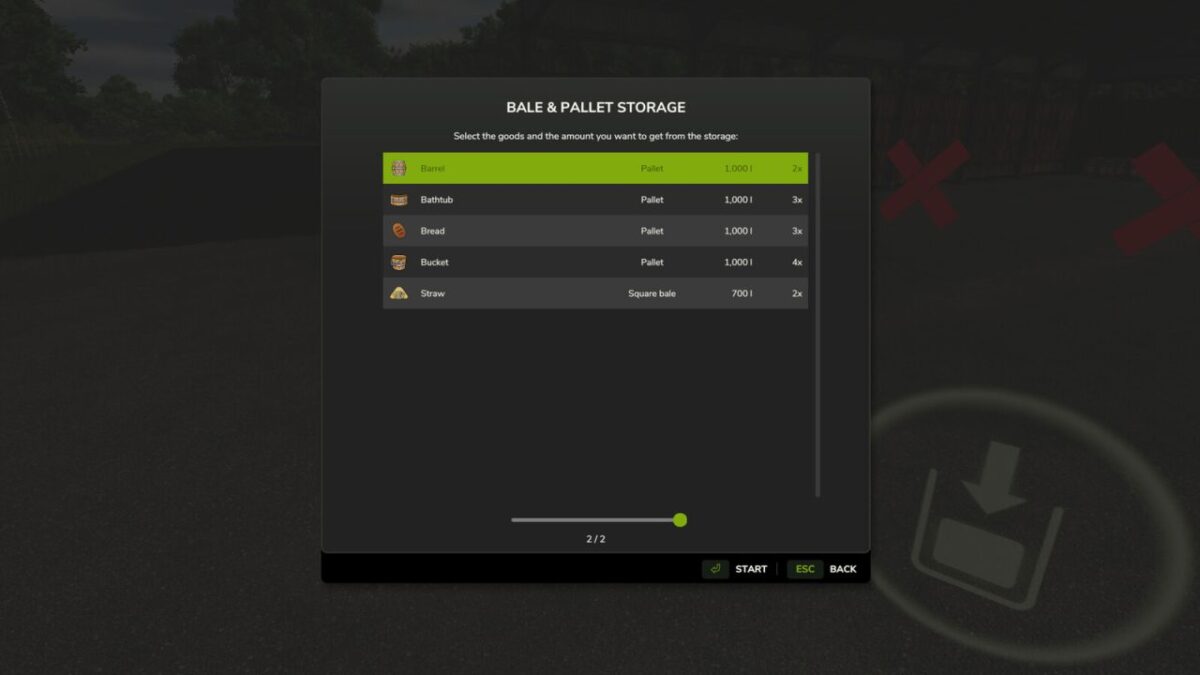
Storage Dialog Plus enhances the default object storage dialog by adding a clean, scrollable list view that displays everything stored inside your object storage.
Easily see all pallets, bales, and stored items in one organized table.
Features:
– Adds a scrollable list view to the object storage dialog
– Clearly displays all stored products
– Separates identical products with different fill levels
– Allows you to choose the exact quantity/version you want to spawn
– Clean and intuitive UI that matches the base game style
This makes managing large storages much easier, especially on busy farms with mixed pallet and bale quantities.
Credits:
FSG Modding - DaVaR