

Enhanced Help Menu v 1.1.0.1

Enhanced Help Menu v 1.1.0.1
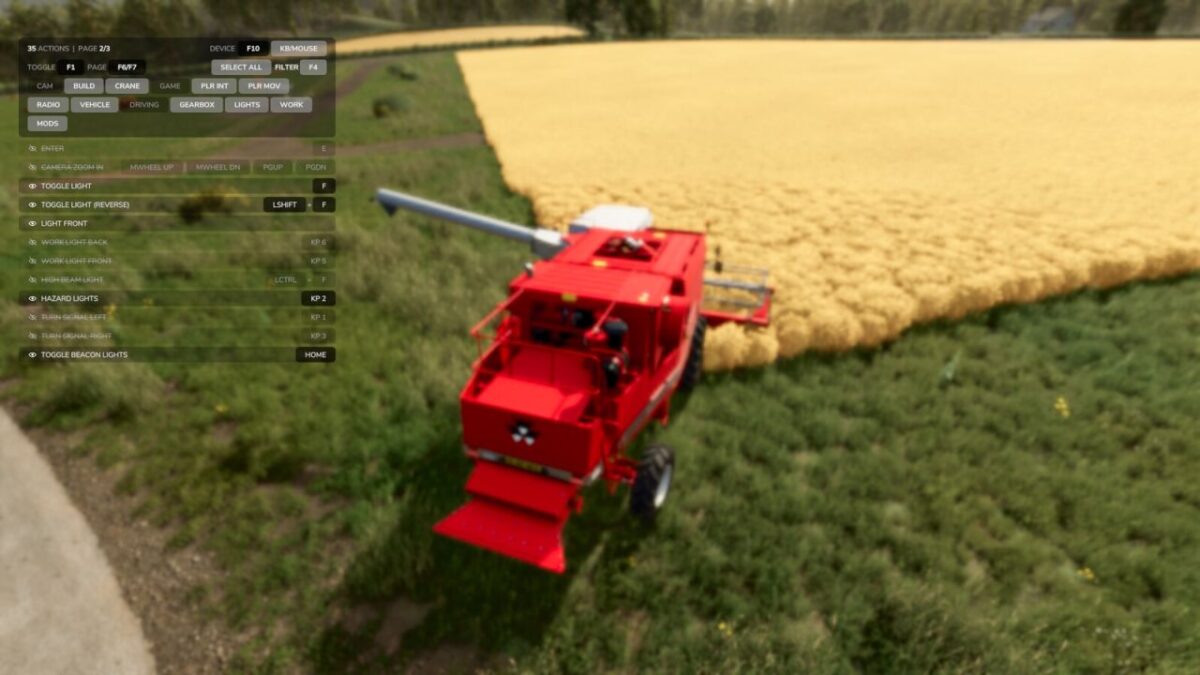
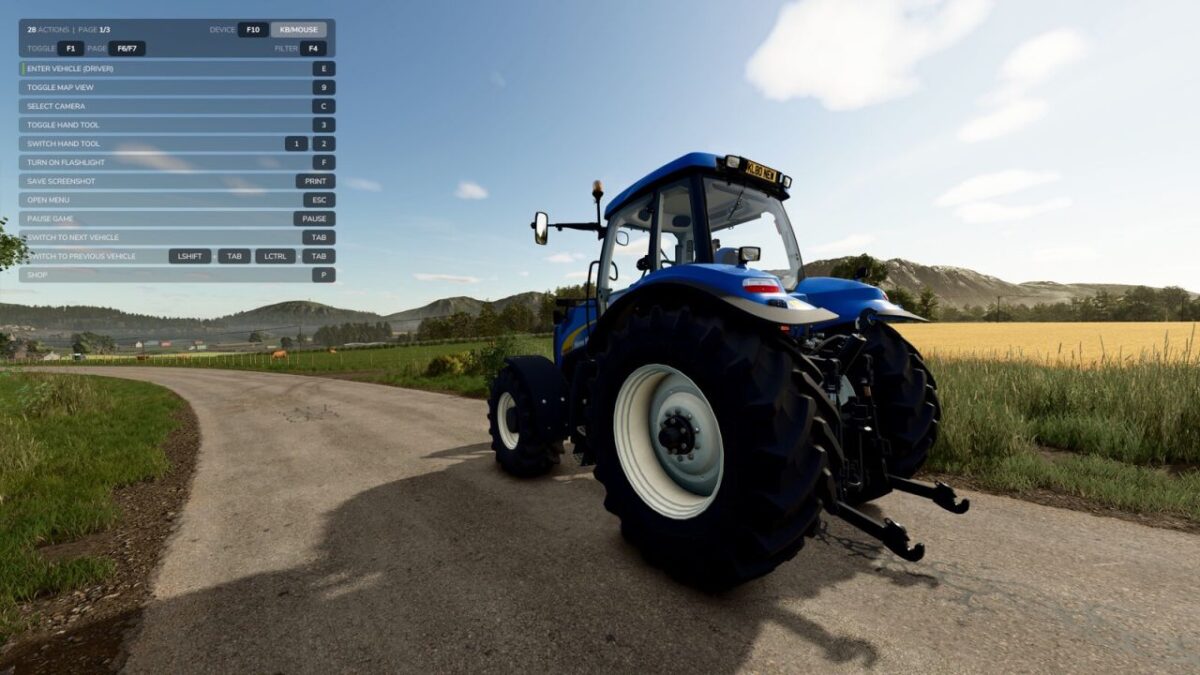
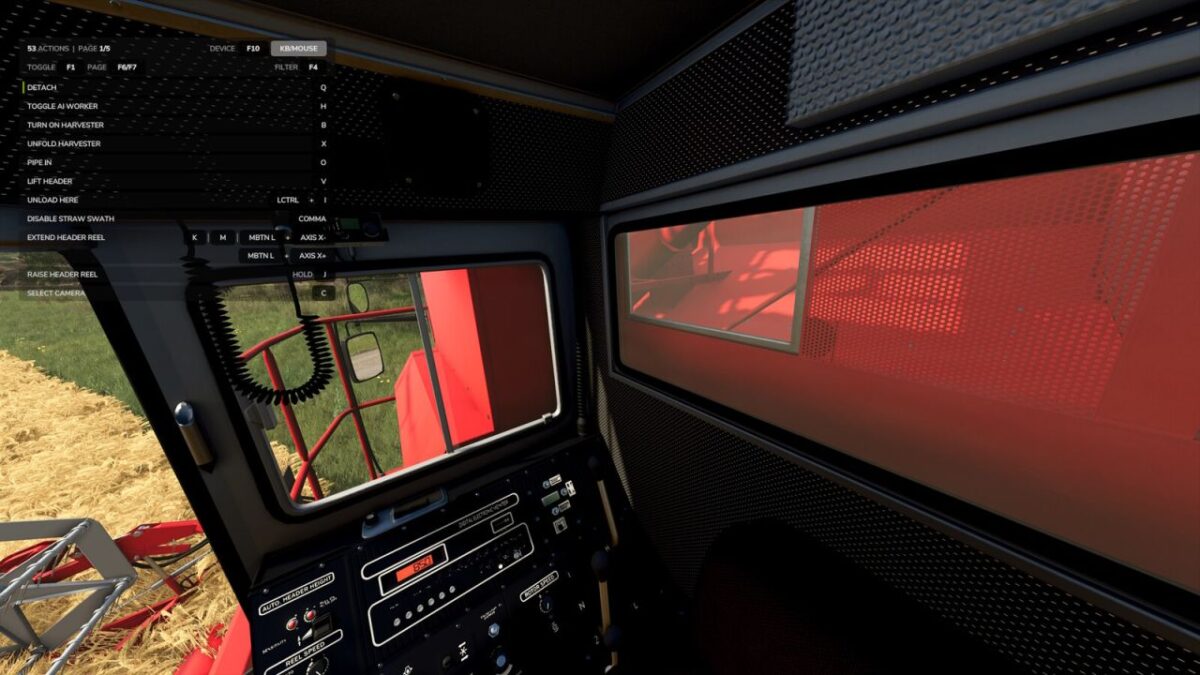
Replaces the built-in F1 help menu with a smarter, always-visible overlay that shows every active input action and its key binding, not just the handful the game chooses to highlight.
The list updates as your context changes: on foot, in a vehicle, near interactive objects, or using attachments. New actions get a subtle green accent bar and slide to the top of the list so you notice them straight away.
Features:
– Lists every active action across all connected input devices
– Real key bindings with proper formatting (keyboard, mouse, joystick, gamepad)
– New-action highlighting: smooth fade-in with green accent bar, auto-sorted to top
– Long bindings wrap to a second line automatically, so nothing hides behind an ellipsis
– Category filter (Camera, Vehicle, Driving, Lights, etc.) to narrow the list
– Hide individual rows you’ve memorized. Open filter mode and click a hidden row to bring it back
– Filter mode softly blurs the game world behind the panel for cleaner focus
– Cycle device filter to see bindings for a specific controller
– Pagination for long action lists
– Settings (filters, hidden rows, display state) persist between sessions
Controls (all remappable in the Controls menu):
F1 : Cycle display (overlay only / F1 only / both hidden)
F4 : Open or close filter (click categories to filter the list, click rows to hide them)
F6 : Previous page
F7 : Next page
F10 : Cycle device filter
Version 1.1.0.1:
* New defaults: ALT + INS / ALT + HOME / ALT + PGUP / ALT + PGDN (was F4/F10/F6/F7). Sidesteps the old PGUP/PGDN camera-zoom conflict. Existing players keep their bindings; new installs get the new defaults. All keys remain remappable, combos supported
* Added “Enhanced Settings” tab under ESC -> Settings, with three settings: show native help menu, rows per page (6-20), and panel width (125% – 300%)
* Added German localization across the whole UI
* Added all devices mode in the device cycle (shows every connected device’s bindings side by side)
* Added work mode and AI mode status lines, with live AI worker state (Driving / Working / Turning / Blocked) and the HOLD key pill
* Precision Farming widgets now coexist cleanly with EHM (no more overlap)
* Panel now follows the game’s UI Scale setting
* Header tightened: dropped the redundant TOGGLE [F1] pill, action count, and duplicate “PAGE” label
* Filter mode hide/unhide now works on header status lines too
* Fixed F1 cycle drifting after construction screen visits
* Fixed native F1 menu occasionally leaking on top of EHM
* Fixed sub pixel seam lines at non integer UI Scale values
* Visual polish on chord key and alternate binding separators