

Inspect 17 v 1.0

Inspect 17 v 1.0
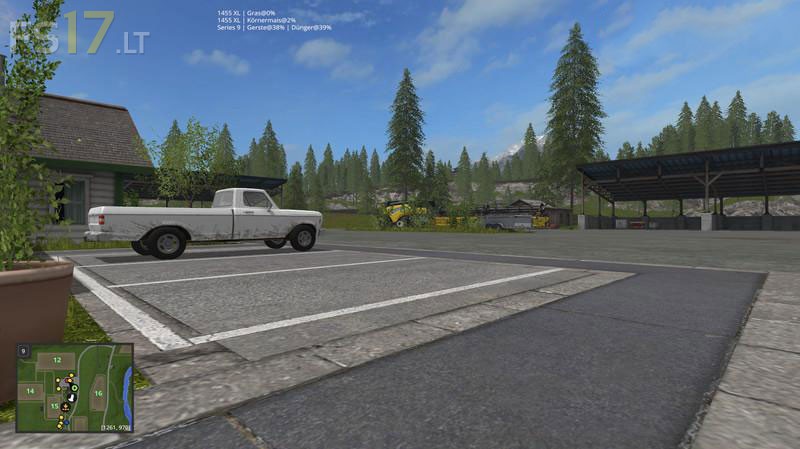
Displays a list of all vehicles in use, either by players or by helpers. It also shows the status of vehicles fill level.
– Animal productivity added, warning if wool pallete is over 90% capacity
– Position changed (top-left and top-center)
– Position top-left, attached to Helpbox
– Settings saved in an xml
CTRL + RIGHT – toggle between display modes
CTRL + SHIFT + RIGHT – toggle between highlight modes
Display Modes:
– Vehicle + attachments + animals
– Vehicle + attachments
– Vehicle + animals
– Vehicle
Highlight Modes:
Variant 1:
– Sowing mashines, manure spreaders and fertilizer spreader with less than 10% load are shown in yellow
– Combines with over 80% load are shown in yellow
– Other Trailers will not be highlighted
Variant 2:
– Sowing mashines, manure spreaders and fertilizer spreader with less than 10% load are shown in yellow
– Combines with over 80% load are shown in yellow
– Other Trailers will be highlighted at 80% load
Does not work with the sugar beets cutter and harvester (FT 300 and Rootster 604) connected to one tractor. After few hours of (helper’s) work an error starts (“Inspect17.lua:181: attempt to call global ’round’ (a nil value)
Error: Running LUA method ‘draw’.”) and breaks the tractor/harvester controls (F1 help window show only one command on all lines, and no other keys work). Only way to make the harverster work again is to disable this MOD. Did not test with other beets nor potato harvesters.
CTRL + RIGHT – toggle between display modes
CTRL + SHIFT + RIGHT – toggle between highlight modes
For these instructions pertaining to the keyboard functions is it left CTRL key, RIGHT what, i.e. right shift key, right arrow key, etc. Would be helpful to know the specific keys to use.