

Radio Enhancements v 1.3

Radio Enhancements v 1.3

This script adds some useful enhancements to the in-game radio.
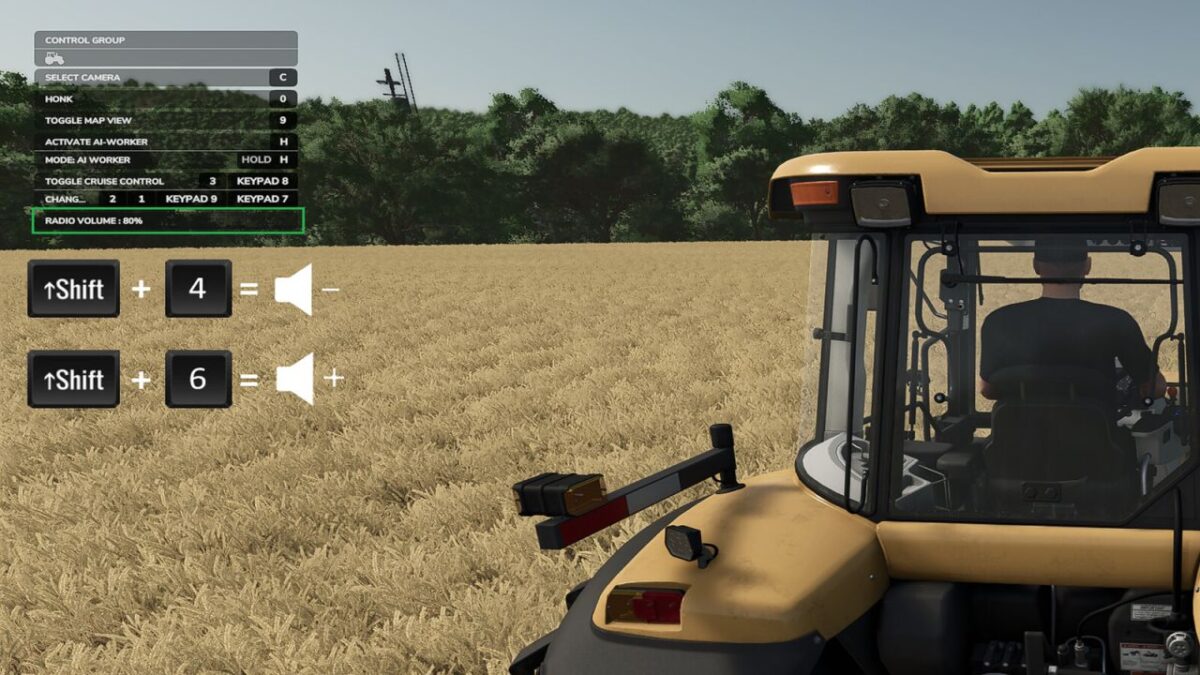
1. You can now change the radio volume in vehicles at any time without opening the menu.
Default keys:
– Left Shift + 4 quieter
– Left Shift + 6 louder
The keys can be changed in the menu settings.
2. The current radio volume is shown for a short time in the F1 menu and then disappears again.
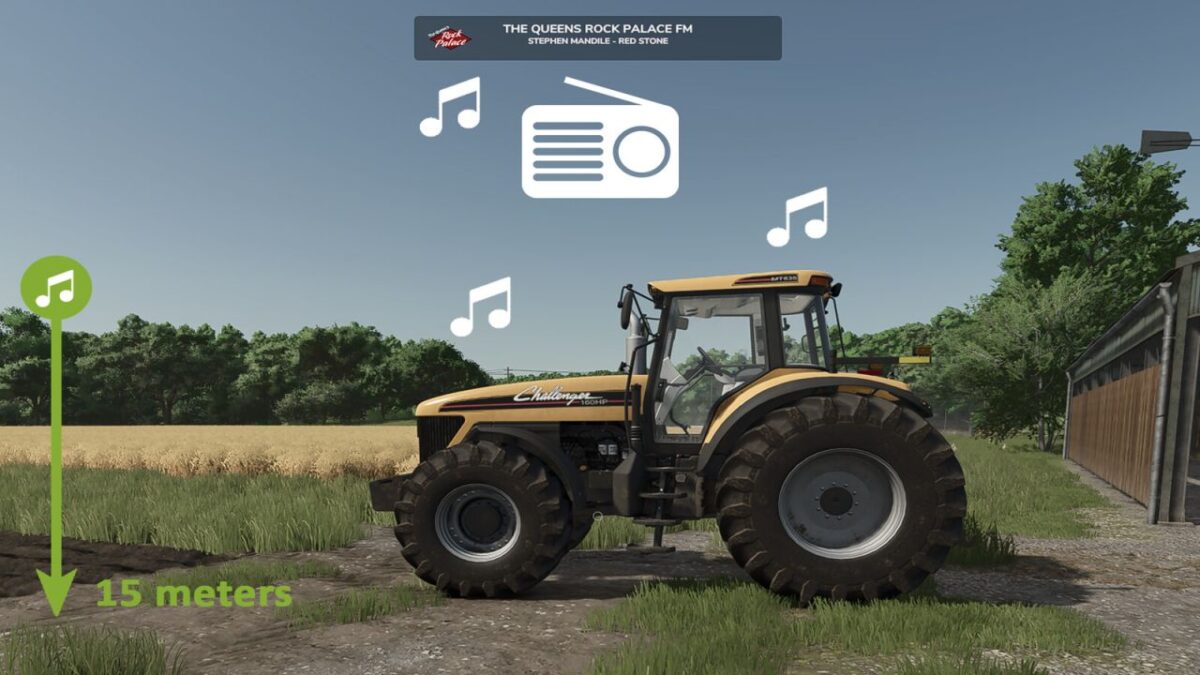
3. If you leave a vehicle while a radio station is switched on, you can continue to hear the radio up to a certain distance.
– after leaving the vehicle, the volume is reduced to 20% of the current value (can be changed)
– if you move away from the vehicle, the music becomes quieter and quieter (maximum distance can be changed)
– if you move closer again, the volume slowly increases again
– the radio must be switched off manually in the vehicle to disable this function
– the radio state (on/off) is saved individually for each vehicle
– helpers switch the radio on by default – you can hear it when driving past (helper radio can be disabled / changed)
– a RadioEnhancements.xml file is created in the modSettings folder where you can change values
4. Multiplayer
– the script synchronizes the radio state (on/off) and the volume of your multiplayer vehicles
– if another player drives past you with the radio switched on, you will hear it too
– internet radio streams are synchronized with your multiplayer partners if you have also set them globally on your side
5. Partybox (Changelog 1.2.0.0)
– you can buy a portable speaker in the shop under Miscellaneous > Miscellaneous
– this Partybox can be carried anywhere and, if desired, continuously plays your radio stations / music everywhere
– to use it, simply “enter” the speaker and check the F1 menu
– the Partybox has its own volume control, independent of everything else
– animated party lights of the speaker can be enabled in the F1 menu and are multiplayer compatible
Version 1.3:
* A preferred start station can now be set
* Radio stations are now saved per vehicle; the preferred station only applies to vehicles without a saved station
* Vehicles and speakers now keep their own station; outside the vehicle, you will always hear the station of the nearest active vehicle
* Mod settings can now be changed directly in the in-game menu under General Settings
* Helper radio volume is now reduced to 50% by default and can be adjusted freely
* The radioEnhancementsVehicles.xml in the savegame now also stores the manufacturer, type, and station of the vehicles
TRIDENTE
How do I install Farming Simulator mods?
Find a mod that you like and want to download first. Then, on your PC, download a mod. Mods are typically in.zip format. However, it is sometimes in.rar format. If the mod file is in.zip format, no additional actions are required. If a file is in.rar format, you must unarchive it using software such as WinRar or Zip7. Windows 10 users do not need to use archive software; Win10 includes an unarchive feature.
The next step is to locate the mods folder on your computer. It is typically found in Documents/My Games/Farming Simulator [Your FS game version, e.g. 2022]. Open the "mods" folder and place the downloaded.zip archive or unarchived.rar file there.
The final step. Have fun with Farming Simulator mods!