

Kirikouano Menu HUD v 1.2

Kirikouano Menu HUD v 1.2
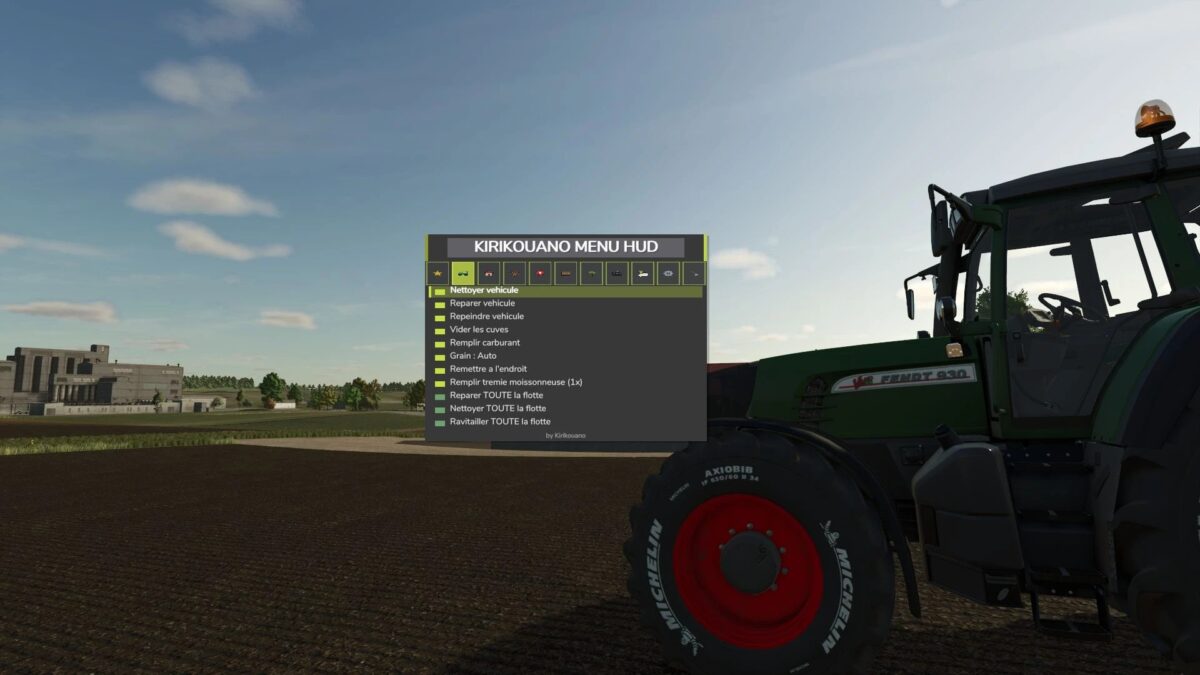
F12 opens/closes a modular and compact panel.
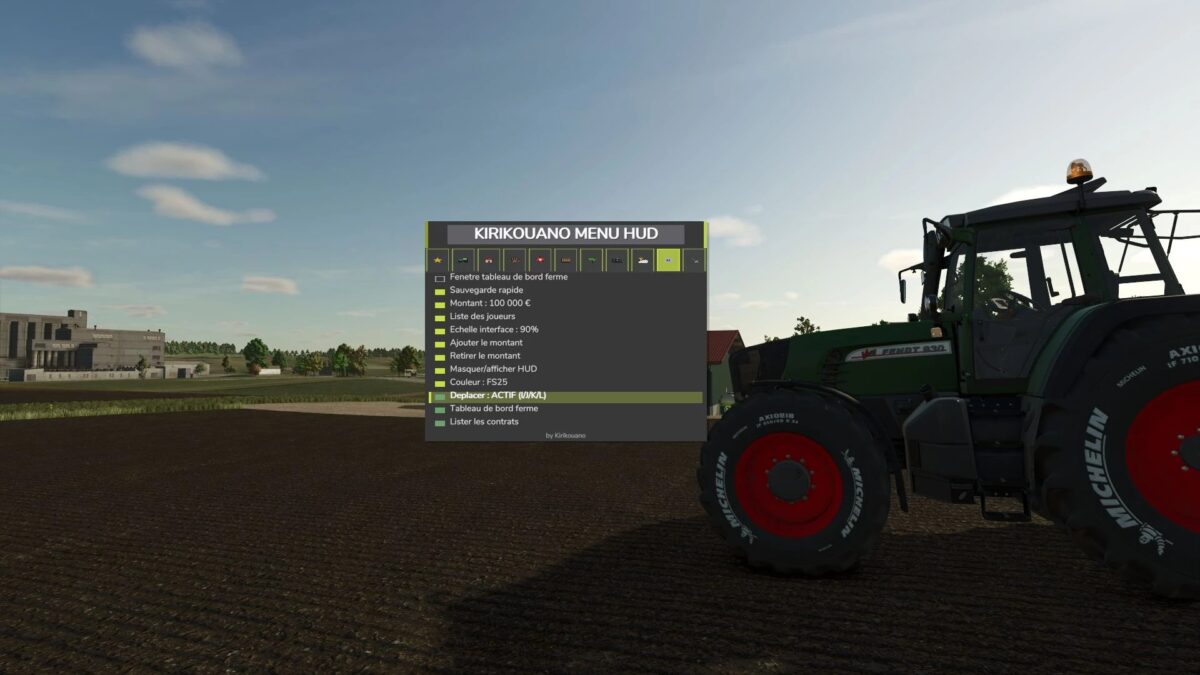
Includes silver, full fill, no wear, flight, fast speed, strength, automatic doors/barriers and free terraforming (toggles): clean/repair/empty vats, choose grain, spawn pallets/bales, buy all terrain, field status editor, right overturned vehicle, quick save, movable and recolorable panel.
Keyboard navigation (wheel/click or Up/Down/Enter) by default.
Controller: no buttons automatically assigned (to avoid any conflict with your own settings) — assign the “KM_MENU_*” actions yourself in Options > Controls > Controller if necessary.
The panel moves with the dedicated I/J/K/L keys (not the arrows, to avoid conflicts with the camera).
Note: Time and Weather actions use game developer console commands and require the “cheats” launch option: all other features work without it.
Version 1.2:
* Complete visual overhaul real colors sampled on the game, custom icons for tabs and animals
* Vehicle repaint + new wash/repair/paint sounds
* Real floating window for firm dashboard
* Fixed menu movement bug (I/J/K/L)
* Removed DEBUG tab (development tools, not intended for normal gaming