

Silvercrest Valley Map v 3.0


Silvercrest Valley Map v 3.0
Version 3.0:
* Copped Straw Mod implemented
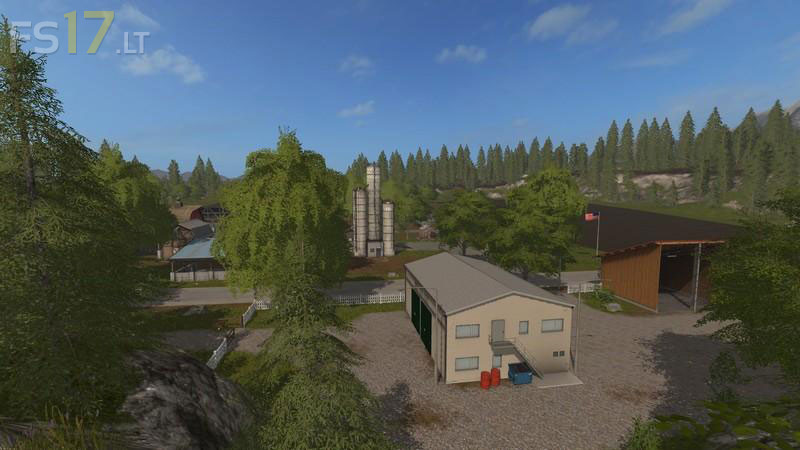
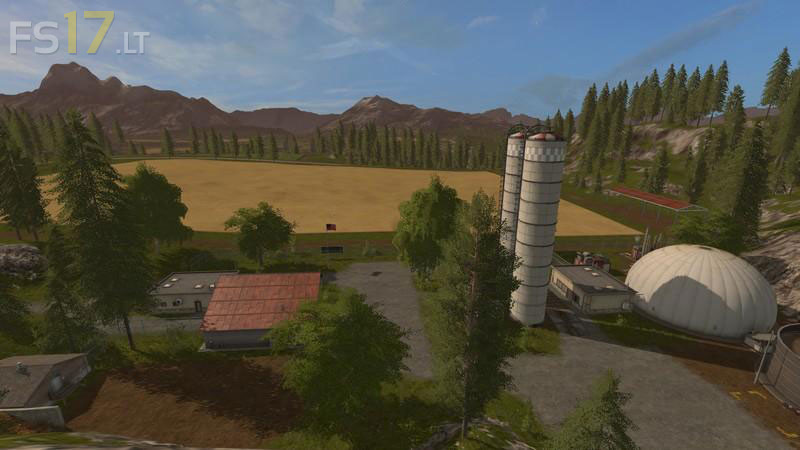
* Built new extension to Farm and added 4 new Storage Silos:
1 Seeds and Fertilizers 50000 liters (you can not refill directly to seeder/fertilizer from silo)
2 Hay and dry grass barn 300000 liters
3 Forage, pig food, grass, silage, chaff 325000 liters
4 Water 85000 liters and 125000 liters at greenhouse area (you need a water trailer that can fill from above, something like Kotte Universal trailers from Farmer_Andy will work)
* Greenhouse area for placeable greenhouses and with water silo
* Buy points for fertilizers and seeds
* New Train Stations/sell points.
* New Fields
* New Roads and a lot of small things around the Map
* More Trees
* Fixed the errors from v 2.0 and added new collisions for ground and buildings
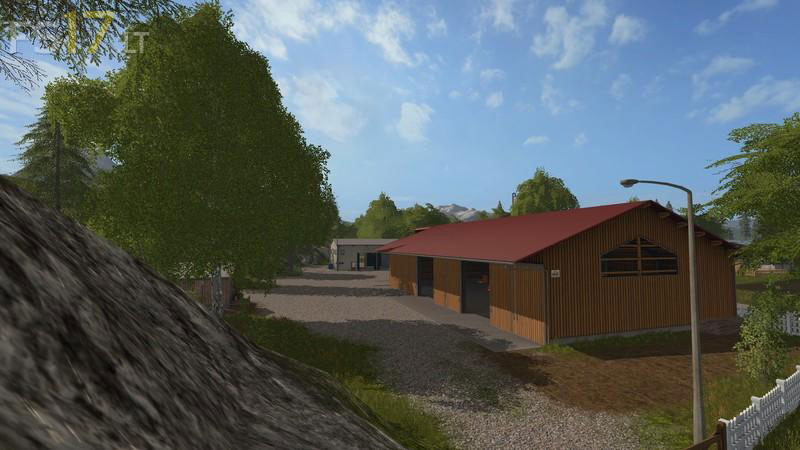
* New Farm with silo, barn, cows, sheeps, pigs and chicken
* Small edit to sawmill and minor changes to the rest of the Map
* You can load the equipment back to the Farm