Shop Favorites v 1.0

FS25 mods

Shop Favorites v 1.0
1 Star2 Stars3 Stars4 Stars5 Stars
About mod:

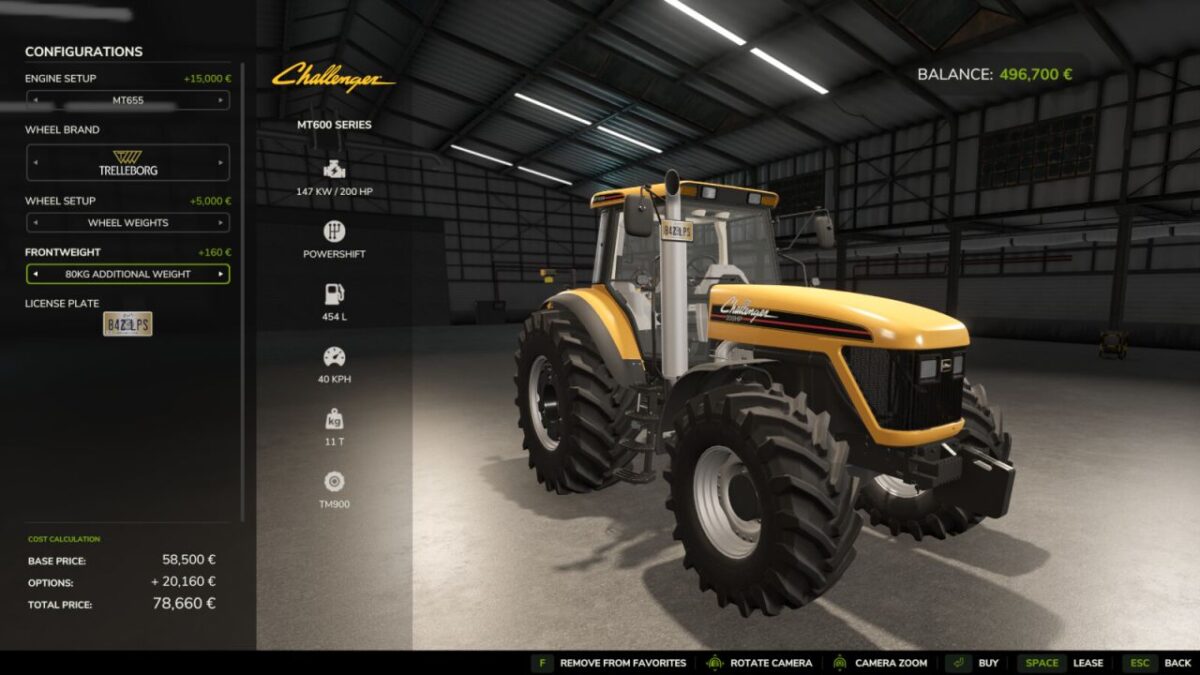
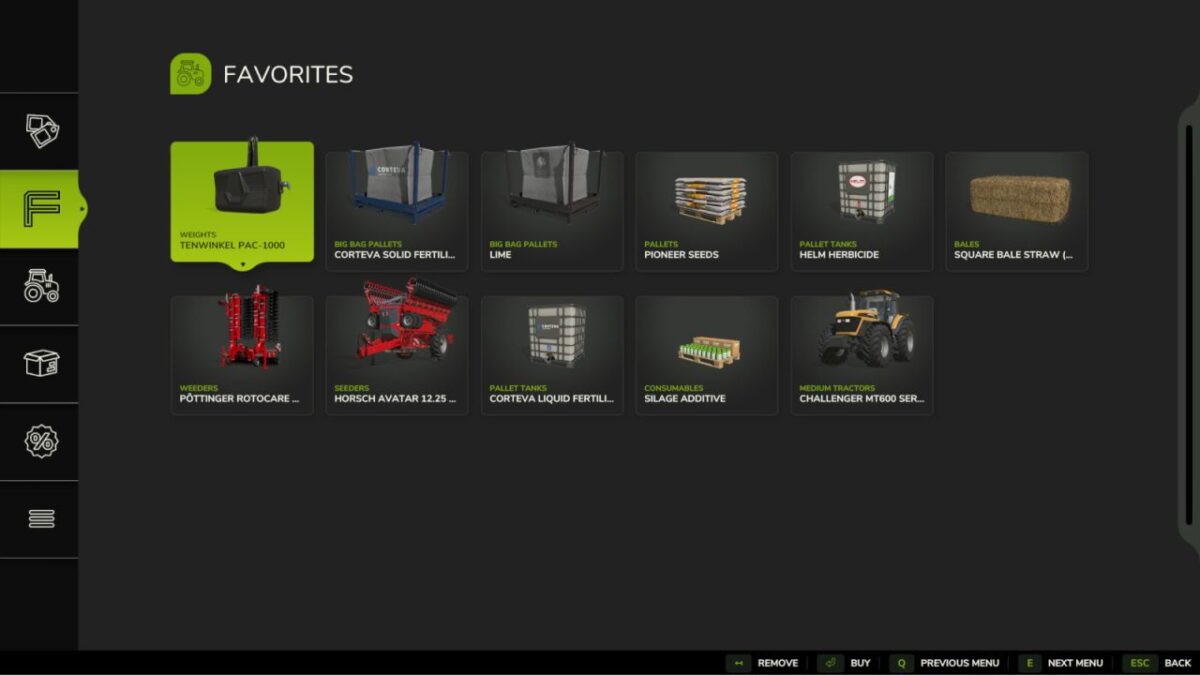
A mod that adds a favorites section to the shop menu where you can save your favorite vehicles and tools.

Add vehicles and tools to your favorites list
Save the selected shop configuration for each favorite
Access favorites from a new tab in the shop menu
Quick access to your most used items
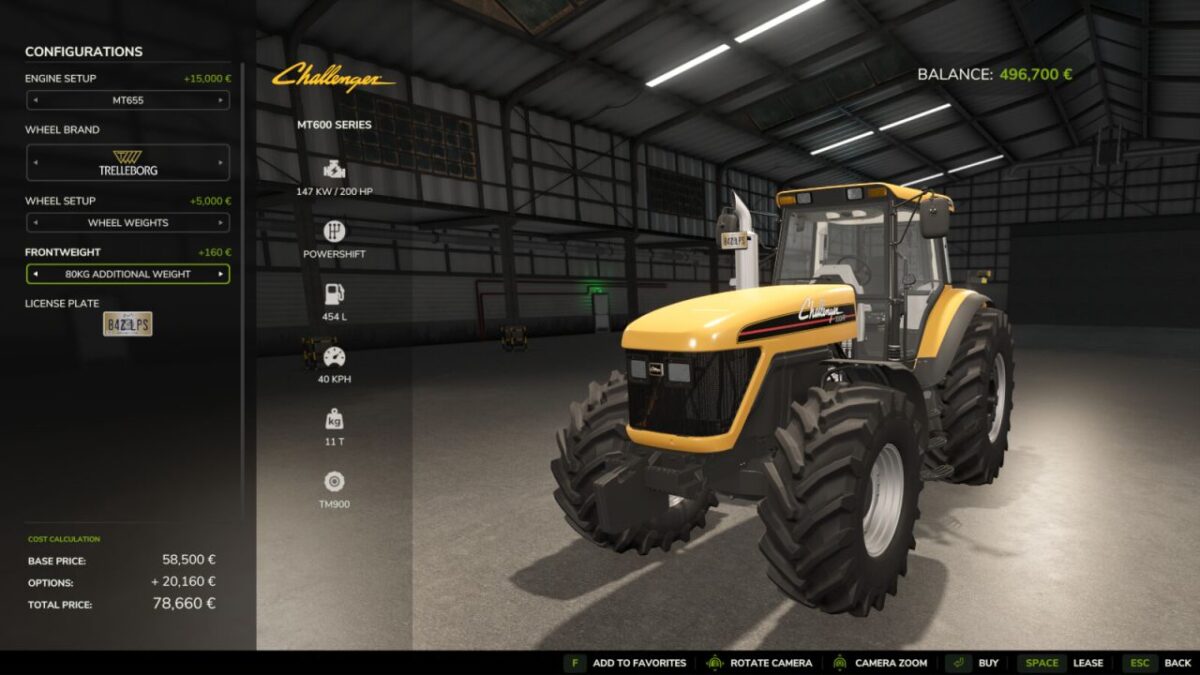
Add/remove items directly from the purchase screen
Buy or lease directly from the favorites page

Features:
Favorites are saved in the modSettings folder and are shared across all saves; missing favorites in a save will be hidden and not deleted
Saved favorites remember selected configurations such as engine setup, wheels, colors, body options and other supported customizations
Multiplayer supported, including normal permission checks for purchases
Works with all vehicles (tractors, machines, cars, trailers) and mods

Credits:

NYKK3

* By clicking [Download this mod from filehost] button you agree to leave this website. The link opens in the new tab. File is hosted in the external website. We are not responsible for the content of the external page and the possibility of free download of the file.

How do I install Farming Simulator mods?
Find a mod that you like and want to download first. Then, on your PC, download a mod. Mods are typically in.zip format. However, it is sometimes in.rar format. If the mod file is in.zip format, no additional actions are required. If a file is in.rar format, you must unarchive it using software such as WinRar or Zip7. Windows 10 users do not need to use archive software; Win10 includes an unarchive feature.

The next step is to locate the mods folder on your computer. It is typically found in Documents/My Games/Farming Simulator [Your FS game version, e.g. 2022]. Open the "mods" folder and place the downloaded.zip archive or unarchived.rar file there.

The final step. Have fun with Farming Simulator mods!

Leave a Reply

Your email address will not be published. Required fields are marked *