

Texture Eyedropper v 2.1

Texture Eyedropper v 2.1
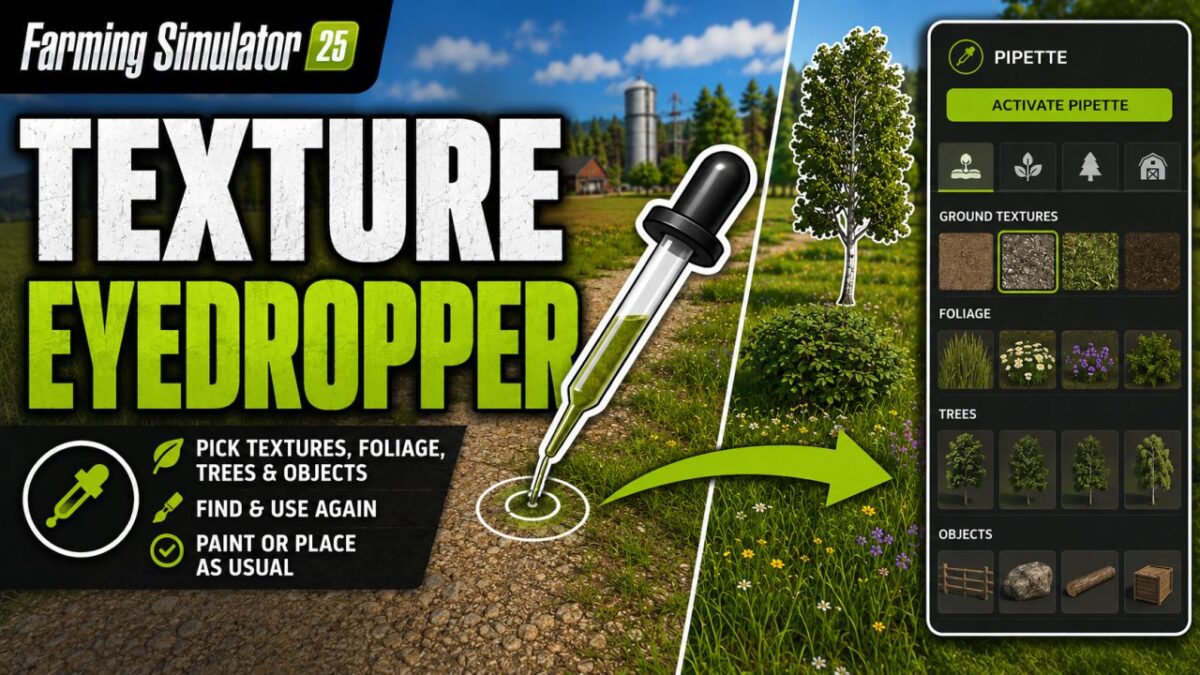
Terrain Texture And Object Picker expands the build menu with an eyedropper feature for ground textures, foliage, bushes, trees and supported placeable objects.
The pipette can be used to capture already used painting textures, visible foliage such as grasses, flowers and bushes, placeable trees and supported objects directly on the map and find them again in the construction menu. For mixed areas, multiple matching hits can be displayed.
Application:
1. Open the “Pipette” tab in the build menu.
2. Press the “Activate pipette” button.
3. Click on a ground texture, foliage, bush, tree, or supported object.
4. Confirm the desired hit in the construction menu.
5. Paint or build as usual.
The pipette can be reactivated at any time if necessary. The active brush is reset before recording.
The mod takes into account available ground textures and suitable foliage of the respective map. Map foliage is recognized without loading additional entries into the normal build menu without checking.
Thanks to PeterPwn247 for “All Decorative Foliage” and to modelleicher (Farming Agency) for “All The Ground Textures Ingame”. Both mods helped to understand how map content can be usefully made available in the build menu.
Version 2.1:
* New tab Search in the construction menu: searches all categories for keywords, regardless of the order, sorted by relevance.
* First related object groups recognized for the search: trees and animal husbandry are found even without a literal name hit.
* StoreItems from new prefab/card templates are now found reliably, even if paths differ in spelling.
* Trees without a clear assignment to a construction menu entry are no longer incorrectly displayed as tiles, but only as information text.